 Eye Monitor
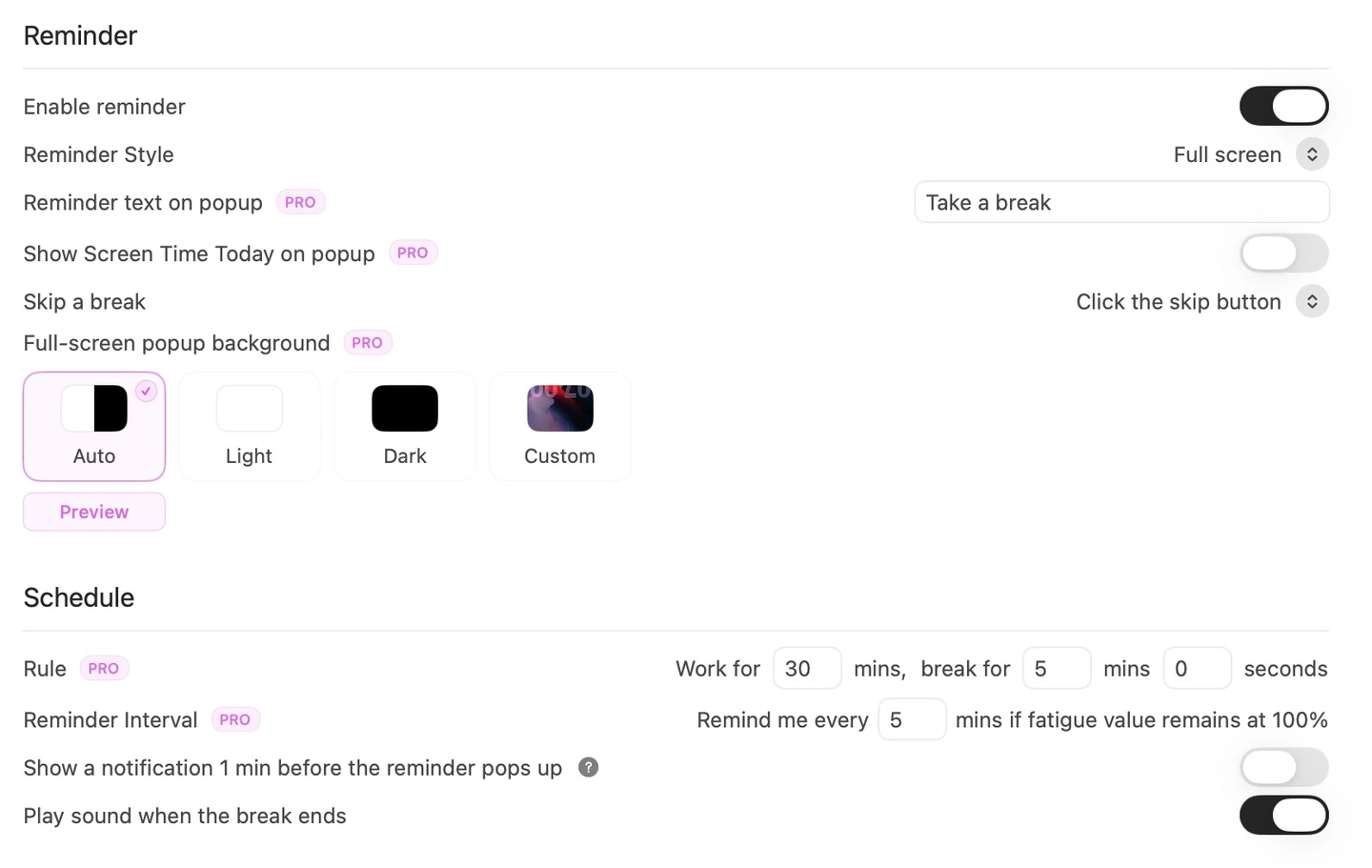
The early settings page
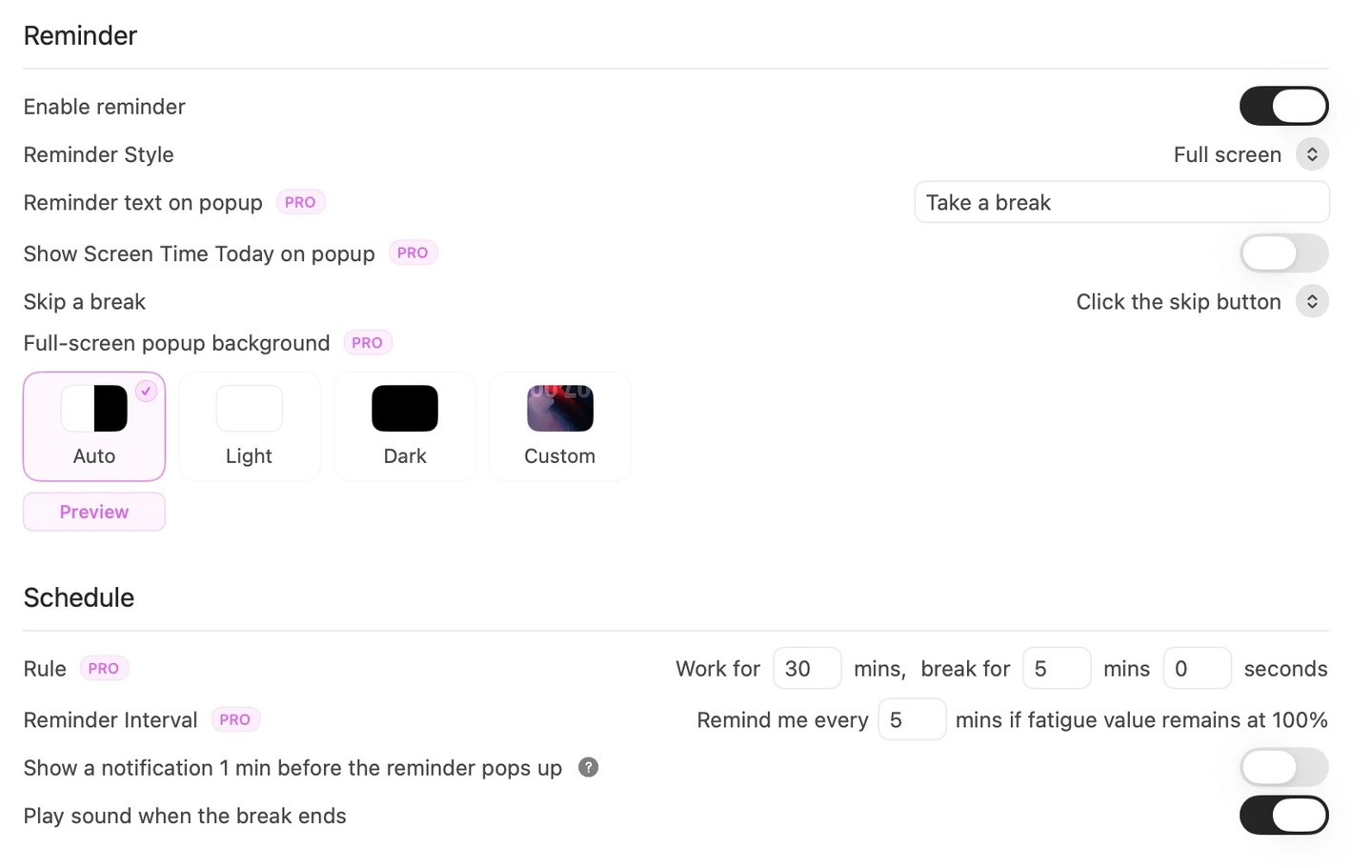
The settings page today
Since I published an article on SSPAI,
“To Avoid Prolonged Sitting and Eye Strain, I Built a macOS Eye-Use Monitoring App”, and it made the homepage, more than a year has gone by before I knew it.
At first, Eye Monitor was just a small app I built for myself to stop me from becoming physically fatigued after getting absorbed in work for too long. It uses keyboard and mouse activity to determine the user’s fatigue level, then reminds them to rest through its Dock icon, status bar icon, system notifications, full-screen notifications, and other methods.
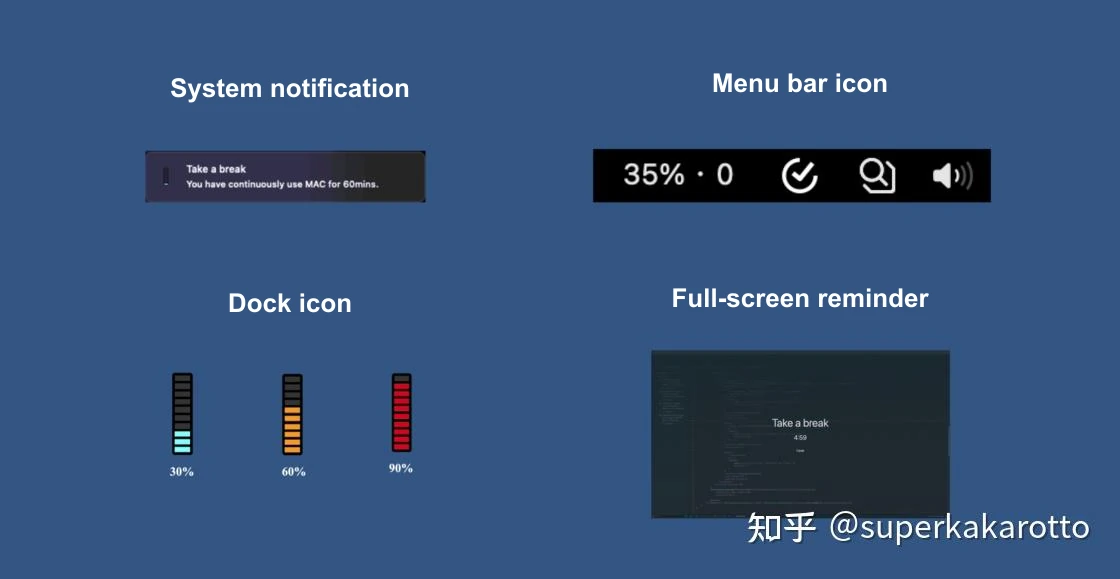
I did not expect Eye Monitor to gain more and more users over that year. In fact, I would often receive emails from users asking me to fix bugs on the very day I released a new version (I am truly sorry, and I have been testing more carefully before each release since then).
After dozens of version updates and improvements based on suggestions from many users, its features have become more complete.
Let’s take a look at some of the useful or interesting features Eye Monitor has gained over the past year!
Custom Fatigue Thresholds, Break Durations, and Reminder Intervals
Version 1.0 of Eye Monitor would remind you after a fixed 40 minutes of continuous computer use, and it always took five minutes for the fatigue level to return to zero.
You can now customize how long you need to use the computer for your fatigue level to reach its peak, and how long a break it takes to reset it to zero. The interval between repeated reminders can also be customized. For a while, I often ignored notifications telling me to rest and kept working. Eventually, I simply changed the notification interval to one minute. With Eye Monitor tirelessly urging me to rest every minute, I finally managed to reduce the amount of time I spent working without a break.
Full-Screen Reminders with Custom Text and Backgrounds
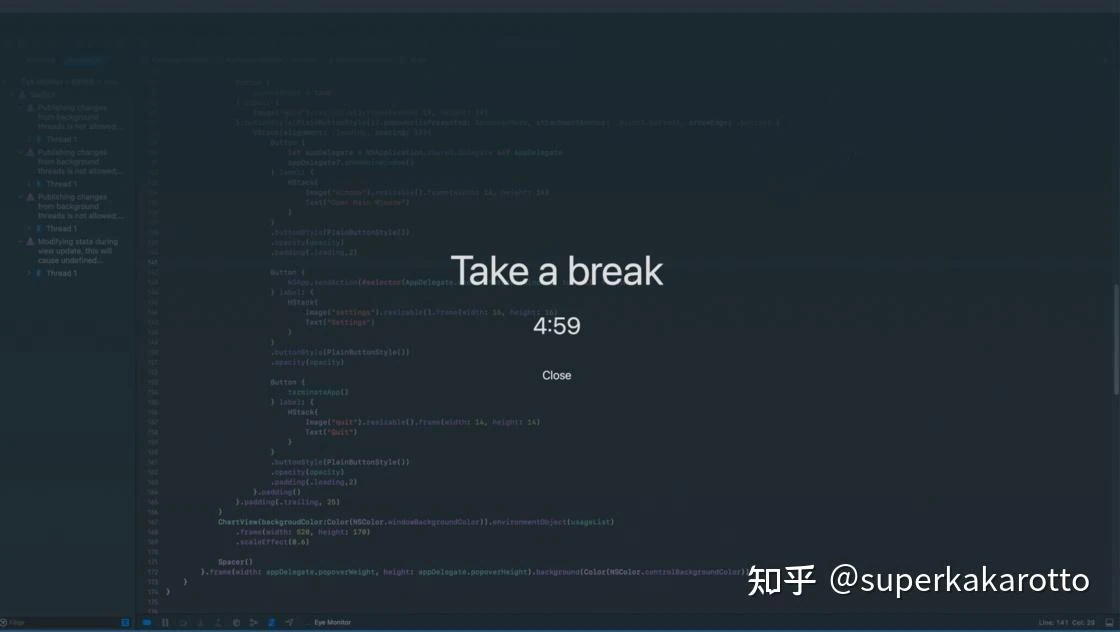
Compared with system notifications, full-screen reminders have two advantages: they are harder to miss, and the visible countdown makes it easy to see how long you have rested while you are up and moving around.
After I released full-screen reminders, a user emailed me to say that the white background in light mode was too glaring, and asked for an option to choose a black or white background. Following the principle of “give users more than they ask for,” I went ahead and added custom background colors and replacement backgrounds. Users can now use the default colors or upload a favorite wallpaper as the full-screen reminder background. They can also change the reminder text, like this:
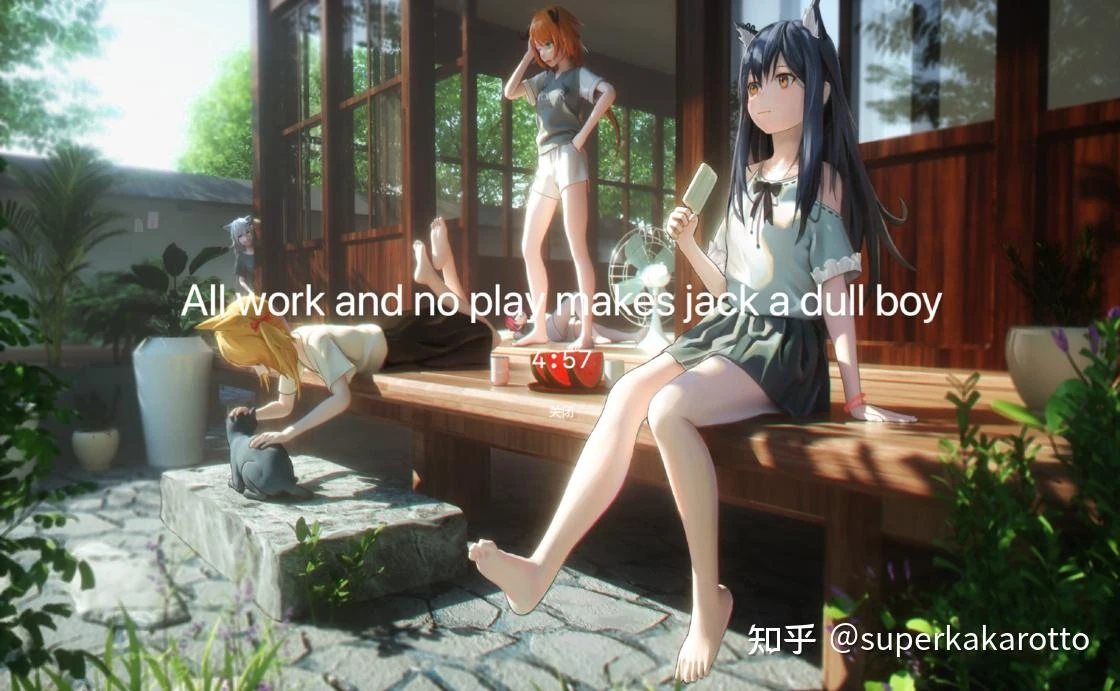
“All work and no play makes Jack a dull boy” (meaning that even a clever child becomes dull if they only work and never play) is a saying our high school English teacher taught us, and it has stayed with me ever since. It would also make a fitting slogan for Eye Monitor.
Today’s Reminder Count
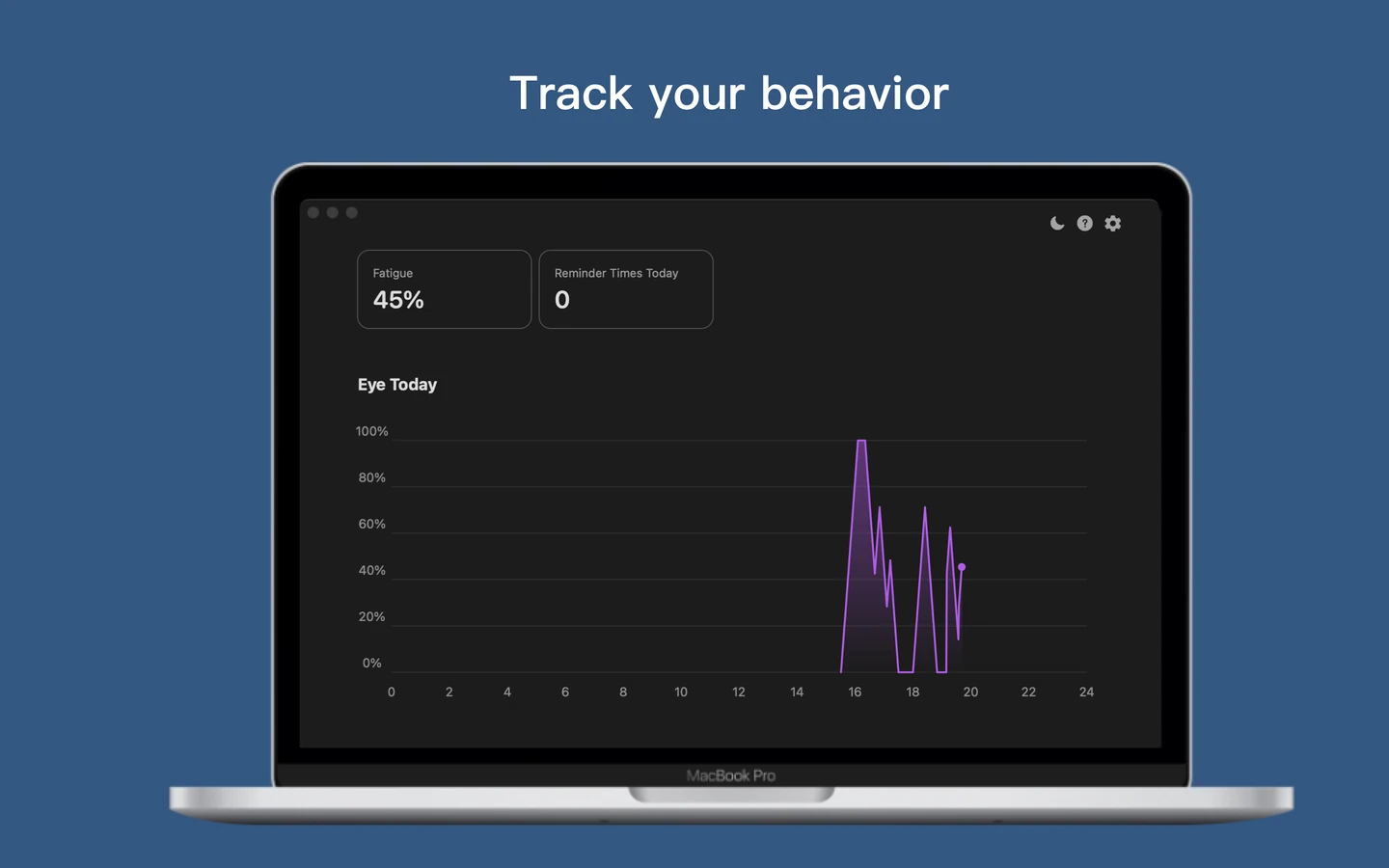
Today’s reminder count records how many reminder notifications have appeared during the day, along with the change compared with yesterday. If this number keeps rising over a period of time, it is a sign to pay more attention to your health.
Do Not Disturb
Eye Monitor also has a built-in Do Not Disturb mode. Some people might ask: doesn’t macOS already have one?
Because Eye Monitor’s reminders serve a different purpose from communications and entertainment apps, some users add Eye Monitor to the allowed list when system Do Not Disturb is enabled, so they can continue to receive its notifications. But there are still situations, such as sharing a screen in a meeting, when they may temporarily want Eye Monitor to stop displaying notifications or full-screen pop-ups (after all, having a full-screen reminder to rest suddenly appear while you are presenting in a meeting is a little awkward).
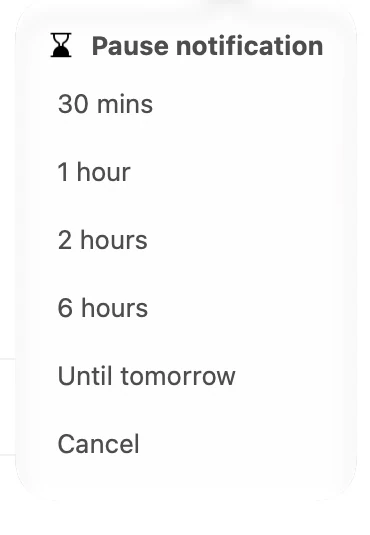
That is why Eye Monitor has its own Do Not Disturb mode, making it easy to pause all its notifications for a while.
Some Thoughts
Developing software that I use every day, that helps other people, and that brings in a little income is deeply satisfying. I am happy to have the chance to do this small thing.
I hope everyone can work in good health for our country for 50 years!
App Store link: https://apps.apple.com/app/apple-store/id1527031341?pt=121796720&ct=zhihu&mt=8
My personal WeChat public account is “原住民的自修室,” where I share my thoughts and reflections. You are welcome to follow it.
If you have suggestions for the product, please feel free to contact me by email: [email protected]
Further reading
Website edition updated