 Eye Monitor
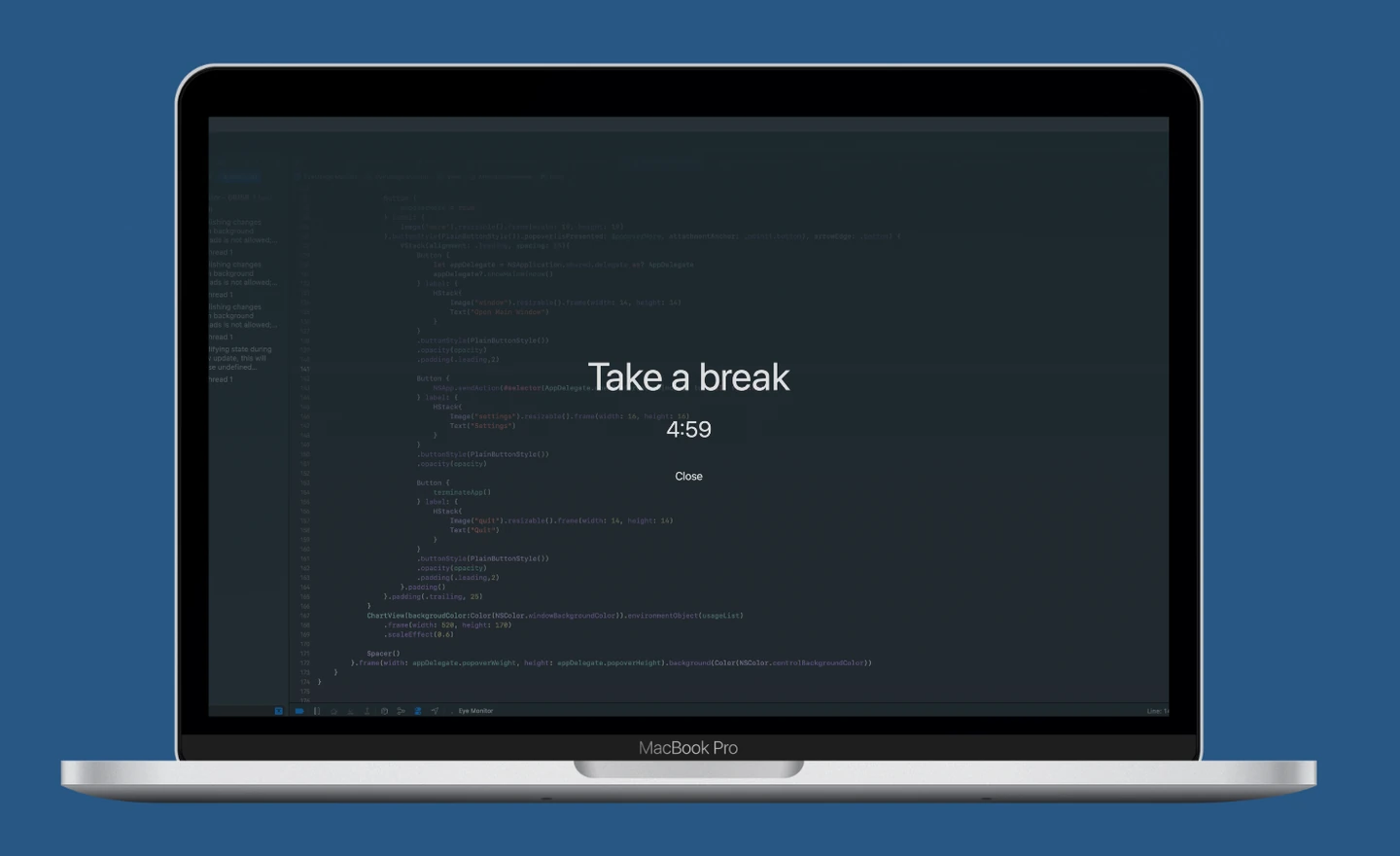
Eye Monitor and Time Out can both build a reliable break routine on the Mac, but they approach the job from opposite directions. Eye Monitor turns computer activity into a visible fatigue level and keeps the setup approachable. Time Out gives people who enjoy fine-tuning far more schedules, rules, themes and actions.
For a clear picture of current Mac use, flexible reminder intensity and an iPhone companion, Eye Monitor is the easier place to start. For a heavily customized schedule with different kinds of breaks, Time Out is the deeper toolbox.
The short answer
Choose Eye Monitor if you want:
- Activity-aware or continuous timing
- Full-screen, Mini and system-notification reminders
- Fatigue and screen-time indicators in the Dock and menu bar
- Usage history and iPhone companion reminders
- Support for macOS 12 or later
Choose Time Out if you want:
- Separate Normal, Micro and custom breaks
- Fixed-time, calendar, manual, random and one-time schedules
- Rules for apps, Focus, calendars and fullscreen use
- Extensive themes, actions and Shortcuts integration
A visible work/rest level or a detailed schedule?
Eye Monitor focuses on one question: how has this Mac session progressed after periods of work and rest? Smart mode estimates activity from mouse, trackpad, keyboard and optional screen changes; continuous mode is available for reading and other low-input work. The result appears as a fatigue percentage that can be seen before the next reminder arrives.
Time Out starts with Normal and Micro breaks, then expands into custom schedules, allowed working hours, natural-break recognition and menu-bar commands. Version 4.0 adds manual, one-time and random schedules, theme rotation and Apple Shortcuts actions. Some of these options are reserved for paying supporters.
If you like building precise rules for different parts of the day, Time Out gives you more raw control. If you would rather choose a mode, set a threshold and understand your current state at a glance, Eye Monitor keeps the workflow simpler.
Handling meetings and interruptions
Time Out can use rules for apps, calendars, Focus and fullscreen activity, and it offers meeting scripts for more specialized setups. That gives it more automatic ways to stay quiet during a call once everything is configured.
Eye Monitor uses a manual pause for 30 minutes, one, two or six hours, or until tomorrow. It is less automatic, but very easy to understand: pause before the meeting, then resume when you are ready. A one-minute advance notice can also give you time to finish a thought before a full-screen or Mini break begins.
Reminder styles, themes and visibility
Eye Monitor gives you three distinct presentations: a prominent full-screen countdown, a movable Mini popup and a standard macOS notification. Full-screen breaks can use custom text and personal images, while the Dock and menu bar keep fatigue and screen time visible between breaks.
Time Out has the larger theme system. It includes photo-based themes, per-display choices and, in 4.0, theme rotation. If designing a different break experience for each schedule or monitor sounds appealing, Time Out offers more room to experiment.
Eye Monitor’s strength is continuity outside the break screen. The Dock icon follows fatigue, the menu bar can show today’s usage and color thresholds, and the analysis view lets you review screen time and completed popup breaks later.
iPhone companion and macOS compatibility
Eye Monitor can send Mac break reminders to an iPhone or iPad, helping the prompt remain visible when you step away from the computer. The companion does not independently track phone use.
Time Out is a Mac-only workflow. Its current 4.0 release requires macOS 26 or later; version 2.9.7 remains available for macOS 10.15 and later, but it does not contain the complete 4.0 feature set. Eye Monitor supports macOS 12 or later with the same current App Store version, making it the simpler choice across a wider range of modern Macs.
Which one should you try?
Choose Time Out if schedules, themes, rules and automation are the heart of the experience you want. Choose Eye Monitor if you want an easier setup, a live view of work and rest, three levels of reminder, usage history and an iPhone companion.
Start with the Eye Monitor mode guide and reminder styles to see whether that workflow fits your day.
Further reading
Links updated