 Eye Monitor
BreakTimer is an easy recommendation if you want a free, open-source timer that works across Windows, Mac and Linux. Eye Monitor is the stronger fit for a Mac-first setup: it adapts to computer activity, keeps your current usage level visible, saves history and can send Mac break reminders to your iPhone or iPad.
The short answer
Choose Eye Monitor if you want:
- Smart timing that reacts to work and time away from the Mac
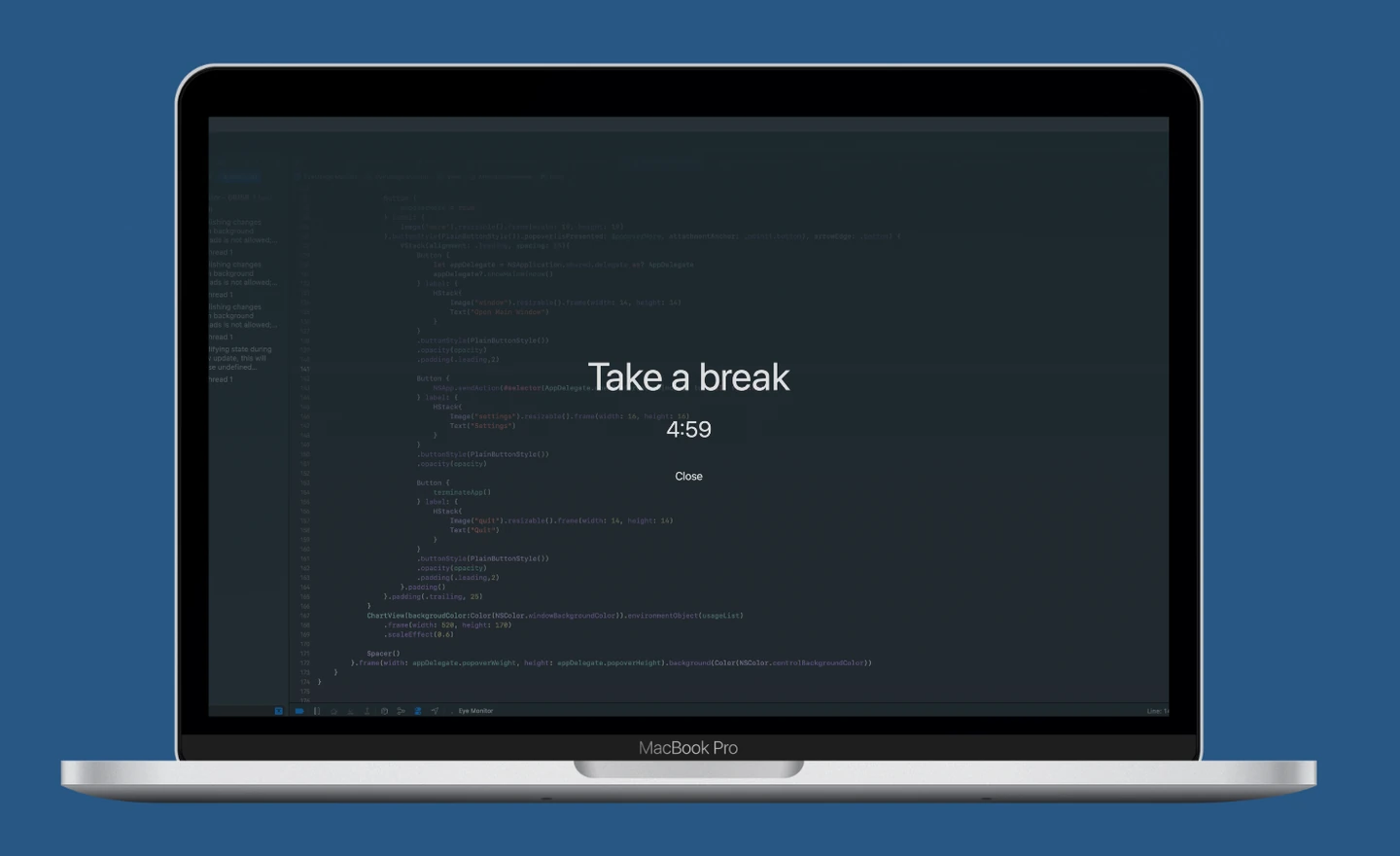
- Full-screen, Mini and macOS notification reminders
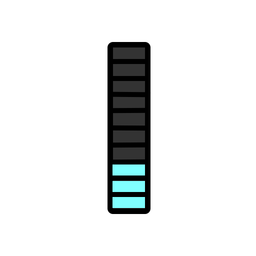
- A live fatigue indicator in the Dock and menu bar
- Usage history, analysis and iPhone companion reminders
Choose BreakTimer if you want:
- A free and open-source app
- The same basic timer on macOS, Windows and Linux
- A straightforward repeating schedule with idle reset
- Custom reminder colors and messages
Smart timing or a repeating schedule?
BreakTimer follows an adjustable cycle: choose how often to rest, how long the break lasts and which working hours it should use. Its idle reset starts the cycle again after you have been away, so an unattended computer does not simply keep moving toward the next reminder.
Eye Monitor makes the work-and-rest cycle more visible. In Smart mode, mouse, trackpad, keyboard and optional screen-change signals help estimate when the Mac is in use. The fatigue indicator rises while you work and falls while you rest, so you can see the next break approaching instead of waiting for a timer to appear. If your day includes long stretches of quiet reading, you can switch to continuous timing. The mode guide explains both choices.
Think of the percentage as an adaptive work/rest indicator—it follows the activity and timing rules you choose, not a measurement of your eyes.
Reminder styles and Mac visibility
BreakTimer supports both system notifications and a full-screen window, along with postpone and skip controls. It also lives in the system tray and lets you personalize colors and messages.
Eye Monitor gives you three levels of interruption. Use a full-screen countdown when you need a firm prompt, a movable Mini popup when you want to keep the current task visible, or a standard macOS notification for the lightest touch. Its Dock icon changes with the fatigue level, while the menu bar can show fatigue, today’s screen time and color thresholds at a glance.
That extra visibility is the main difference: BreakTimer waits in the tray until its schedule reaches a break, while Eye Monitor keeps the state of your current work session on screen throughout the day.
History, phone reminders and personalization
Eye Monitor records today’s screen time and offers longer-term analysis on supported macOS versions. It can also send the Mac reminder to an iPhone or iPad after setup—useful when a break takes you away from the desk but straight toward another screen. The phone app is a companion to the Mac, not a separate phone-usage tracker.
For the full-screen reminder, Eye Monitor supports custom text and your own image background. BreakTimer’s strength is lighter customization through colors and messages. Some Eye Monitor schedule, analysis and appearance options require Pro; BreakTimer is free and open source.
Which one should you download?
Pick BreakTimer when cross-platform support, open-source code and a conventional interval timer matter most. Pick Eye Monitor when you want a break reminder that feels integrated with the Mac and shows more than a countdown: current activity, screen time, history and reminders that can follow you to your phone.
If that sounds closer to your workday, set up Eye Monitor in a few minutes or explore its reminder styles before downloading.
Further reading
Links updated