 Eye Monitor
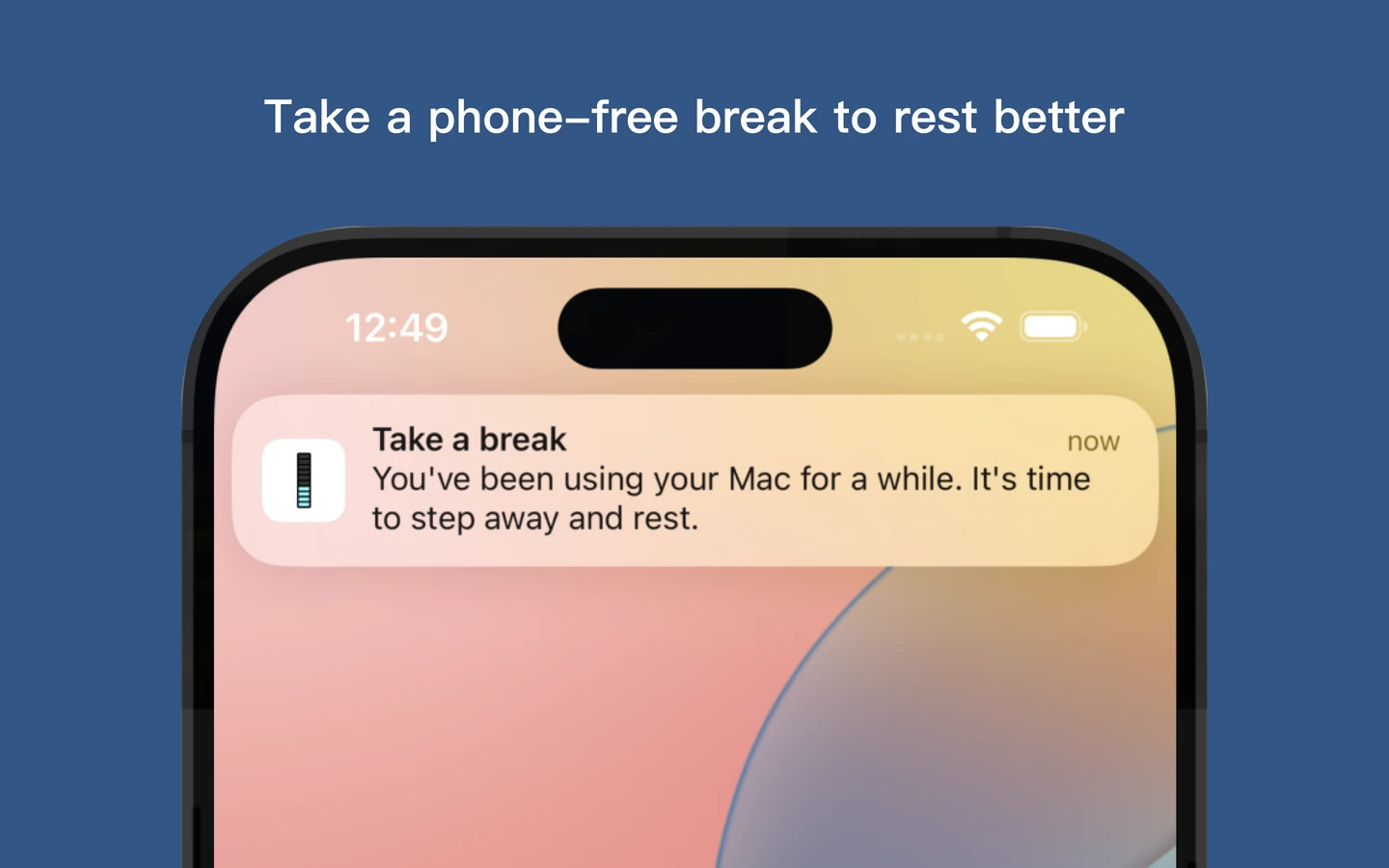
The iPhone and iPad app is a companion to Eye Monitor for Mac. It receives Mac break reminders so that switching to your phone does not make the original intention easy to miss. The Mac remains responsible for timing and statistics.
Link your devices
- On Mac, open Eye Monitor and select iPhone in the sidebar.
- Use Sign in with Apple. This Mac feature requires Pro.
- Install Eye Monitor on your iPhone or iPad and sign in with the same Apple account inside the app.
- Allow notifications on the iPhone or iPad when prompted.
- On the Mac’s signed-in page, enable Send break reminders to iOS devices.
The app uses Apple sign-in to associate devices and a push-notification service to deliver reminders. Merely using the same iCloud account in system settings is not a substitute for signing in inside both apps. There is no verification-code pairing step in the current sign-in flow.
Understand what reaches your phone
The companion can receive Mac break notifications. Where a notification appears depends on your iPhone or iPad notification settings, including Lock Screen and banner options. Allow notifications for Eye Monitor and choose a presentation you will notice.
The phone notification keeps the Mac break visible after you change devices. Break-completion statistics still come from supported countdowns on the Mac.
If a reminder does not arrive
First check that the Mac actually started a break, reminders are not paused, and the iOS reminder switch is on. Then confirm the in-app Apple account matches, both devices can access the network, and iPhone notification or Focus settings allow the message.
Open the iPhone app to refresh its device registration. Network conditions, Apple’s push service, device permissions and installed app versions can all affect delivery time.
Disconnect a device
Use Log out in the iPhone app to remove its notification association. The app needs a successful network response before completing this operation. Logging out is different from deleting your Mac usage history or cancelling a subscription.
Further reading
Links updated