 Eye Monitor
You are halfway through a document when a break reminder covers the screen. You dismiss it because the sentence is unfinished. The next reminder arrives during a call. By the afternoon, the app is switched off—and a tool that was supposed to help has become one more interruption to manage.
The best Mac break reminder is not the one with the longest feature list. It is the one whose timing makes sense, whose prompts are hard enough to notice without becoming annoying, and whose controls fit the way you actually work.
Start with the way you spend time on your Mac
A conventional timer treats every minute the same: once the interval begins, the next reminder arrives after a fixed amount of time. That predictability is useful, especially for reading, watching a presentation or any task with very little mouse and keyboard activity.
Activity-aware timing can feel more natural on a varied workday. Eye Monitor’s Smart mode watches activity signals from the Mac. When you step away, the fatigue level can fall automatically; when you return, the updated level shows how much of the break has already been accounted for. You do not have to reset a timer after every trip away from the desk.
No single mode fits every task. Quiet reading creates fewer activity signals than writing or editing, which is why Eye Monitor also offers continuous timing. Think about a typical morning—typing, meetings, static documents, videos and time away—then choose the mode that matches most of it. The smart and continuous timing guide makes the difference easy to test.
Choose how strongly you want to be interrupted
A reminder only works if you notice it, but the strongest interruption is not always the most useful. Eye Monitor gives you three options:
- Full-screen popup for a clear stop signal and visible break countdown across connected displays.
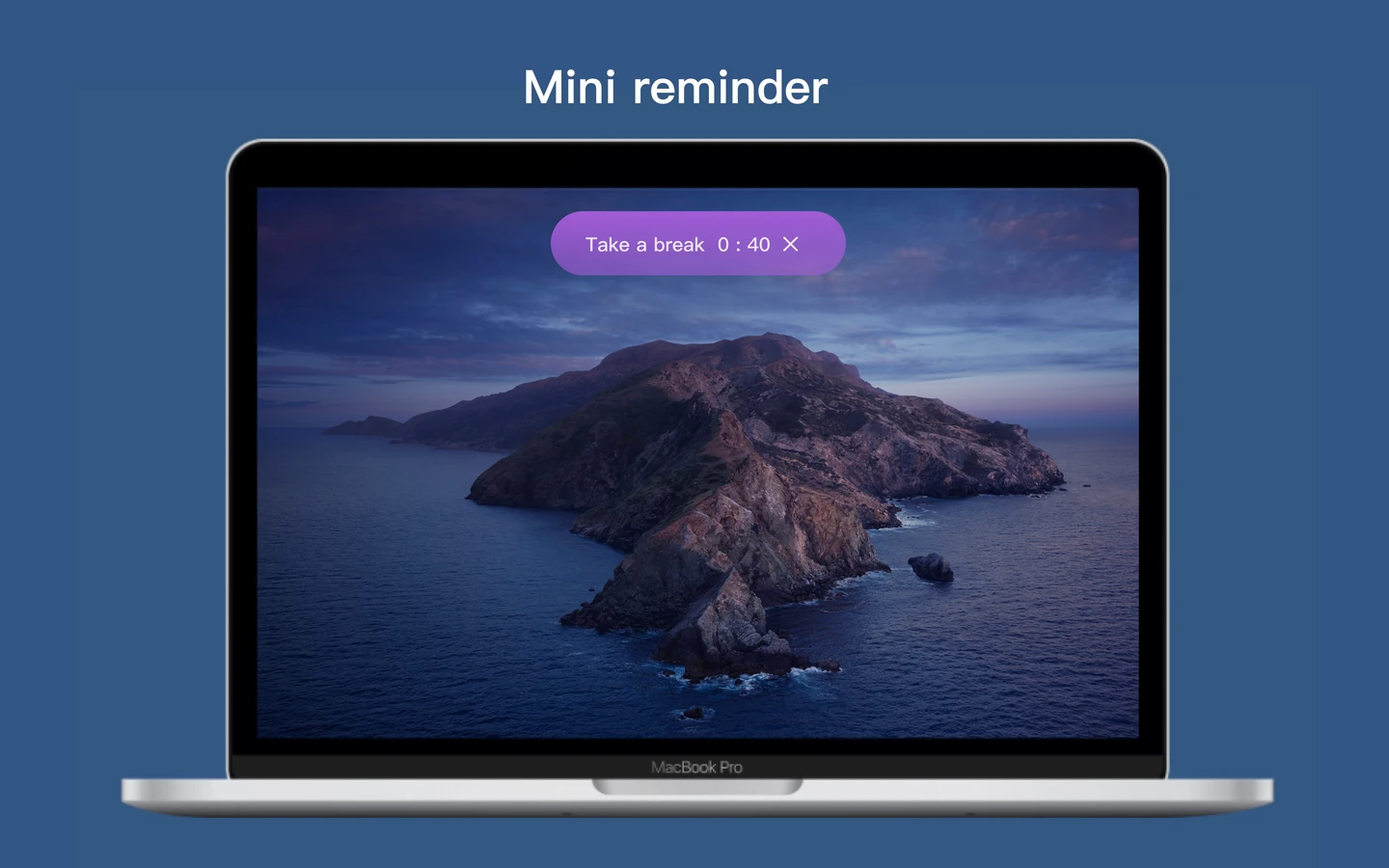
- Mini popup for a compact, movable reminder that leaves the current task in view.
- Notification for the lightest interruption through macOS.
If small notifications disappear into the corner of your screen, start with Mini or full screen. If your work includes frequent calls and live demonstrations, a system notification may be easier to keep enabled all day.
Full-screen and Mini reminders can also send a one-minute advance notice. That small warning is often enough to save a file, finish a sentence and enter the break without immediately reaching for Skip.
Make sure there is a fast pause button
Even a well-timed reminder will occasionally meet a presentation, a customer call or a deadline. The important part is having an obvious exception that does not require turning the app off.
Eye Monitor can pause reminders for 30 minutes, one hour, two hours, six hours or until tomorrow. Use it before a meeting, then cancel the pause when you are ready. The app does not try to guess what is on your calendar, so the behavior remains easy to understand.
You can also decide how breaks may be skipped: with a normal button, with an extra challenge, or not from the reminder itself. The right amount of friction depends on whether your usual problem is missing the reminder or dismissing it too quickly.
Look for progress you can see before the popup
Many break timers remain invisible until the moment they interrupt you. Eye Monitor keeps the current state in view: the Dock icon changes as the fatigue level rises, and the menu bar can show both fatigue and today’s recorded screen time. Optional orange and red time cues make long Mac days easier to notice at a glance.
That visibility changes the experience. Instead of treating every reminder as a surprise, you can see one approaching and choose a natural stopping point.
Use history to improve the setup
The first settings rarely need to be permanent. After a few normal workdays, look at when reminders appeared, which ones you completed and which ones you skipped. Eye Monitor shows today’s activity curve and screen time; on macOS 13 or later, the Analysis view adds longer trends, fatigue-peak time and popup break completion.
Use those records to adjust one thing at a time. If reminders arrive during long reading sessions, try continuous timing. If they are easy to ignore, move from a notification to Mini. If the full-screen view feels too abrupt, enable the advance notice or choose a calmer background.
A good Mac break reminder should stay enabled
The real test is not whether an app can produce a popup. It is whether you still want it running next week. Timing that matches your tasks, a reminder style that fits the moment, a fast pause control and visible progress all make that more likely.
Eye Monitor brings those pieces together in one Mac-focused app, with an optional iPhone companion when the reminder needs to follow you away from the desk. Start with the Mac setup guide, choose the lightest reminder you will reliably notice, and adjust from there.
Further reading
Links updated