 Eye Monitor
A break timer can feel perfectly accurate while you are typing and completely wrong while you are reading. You spend twenty minutes on a long document, glance at the fatigue indicator and find that it has fallen. You were still working—but the Mac saw almost no activity.
That is the central difference between smart and continuous timing. One responds to signs of computer use; the other keeps counting while the Mac remains awake and unlocked. Eye Monitor lets you choose between them.
What Smart mode pays attention to
Smart mode uses activity signals to estimate when the Mac is in use. Mouse movement, trackpad gestures, scrolling and keyboard input all provide useful clues. Optional screen-change detection can also help when content is moving even though your hands are still.
During active writing, design or browsing, those signals arrive naturally. When you leave the desk, they stop, allowing the fatigue level to recover without asking you to pause or reset a timer. That makes Smart mode especially comfortable on a day with frequent short trips away from the computer.
Keyboard detection needs Accessibility permission, while screen-change detection needs Screen Recording permission. Eye Monitor compares screen changes locally; it is looking for visual change, not trying to understand the document or video.
Why quiet reading can look like rest
Imagine three thirty-minute sessions:
- You write and edit continuously.
- You read a static PDF without scrolling.
- You leave the Mac unlocked while doing something elsewhere.
The first session produces lots of activity. The second and third can look surprisingly similar to an activity detector, even though only one is a real break. Smart mode can distinguish active work from time away, but no activity signal can always tell quiet reading from an empty chair.
Screen-change detection helps with videos, presentations and animated pages, yet a completely static page remains static whether you are reading it or not. If low-input work is a large part of your day, continuous timing may match your expectations better.
When continuous timing is the better choice
Eye Monitor calls continuous timing Dumb mode in the interface. In general, it treats an awake, unlocked Mac as being used, even when the mouse and keyboard are still. Locking the screen or putting the Mac to sleep still counts as rest.
This mode works well for long documents, videos, online classes and any task where attention is high but input is low. Its trade-off is equally clear: if you walk away and leave the Mac unlocked, the timer may continue as though you were there.
Neither mode is more “correct” for every person. Smart mode is better at recognizing natural time away; continuous mode is better at counting quiet presence. The right choice is the limitation that bothers you less.
Test both modes with your real work
You can find a good fit without building a complicated experiment:
- Keep the same work interval, rest duration and reminder style.
- Use Smart mode during a normal writing or editing session.
- Watch what happens during a quiet reading session.
- Try continuous mode during similar work, including a short trip away from an unlocked Mac.
- Keep the behavior that is easiest to understand.
To change the setting, open Accuracy → Mode and select Smart mode or Dumb mode. The mode setup guide also covers keyboard and screen-change permissions.
Timing and reminder style solve different problems
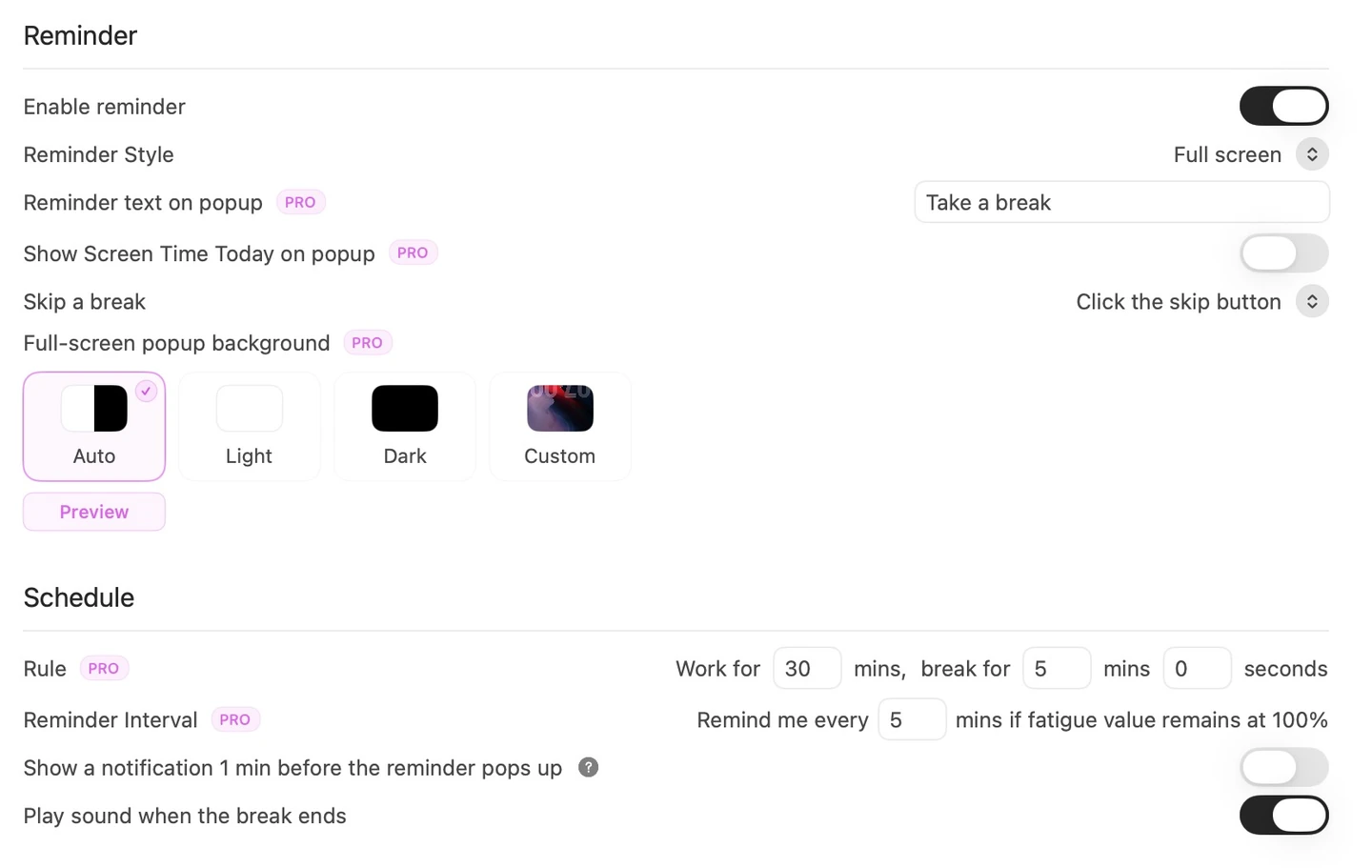
If a popup arrives at a bad moment, changing the counting mode may not be the answer. A one-minute advance notice, a smaller Mini popup or a manual pause before a call may solve the interruption without changing how activity is counted. The reminder-style guide explains those controls.
The menu-bar screen-time total is different again: it accumulates recorded use across the day, while the fatigue percentage rises and falls through each work/rest cycle. Once you understand those two numbers—and choose the timing mode that matches your work—Eye Monitor becomes much easier to read at a glance.
Further reading
Links updated