 Eye Monitor
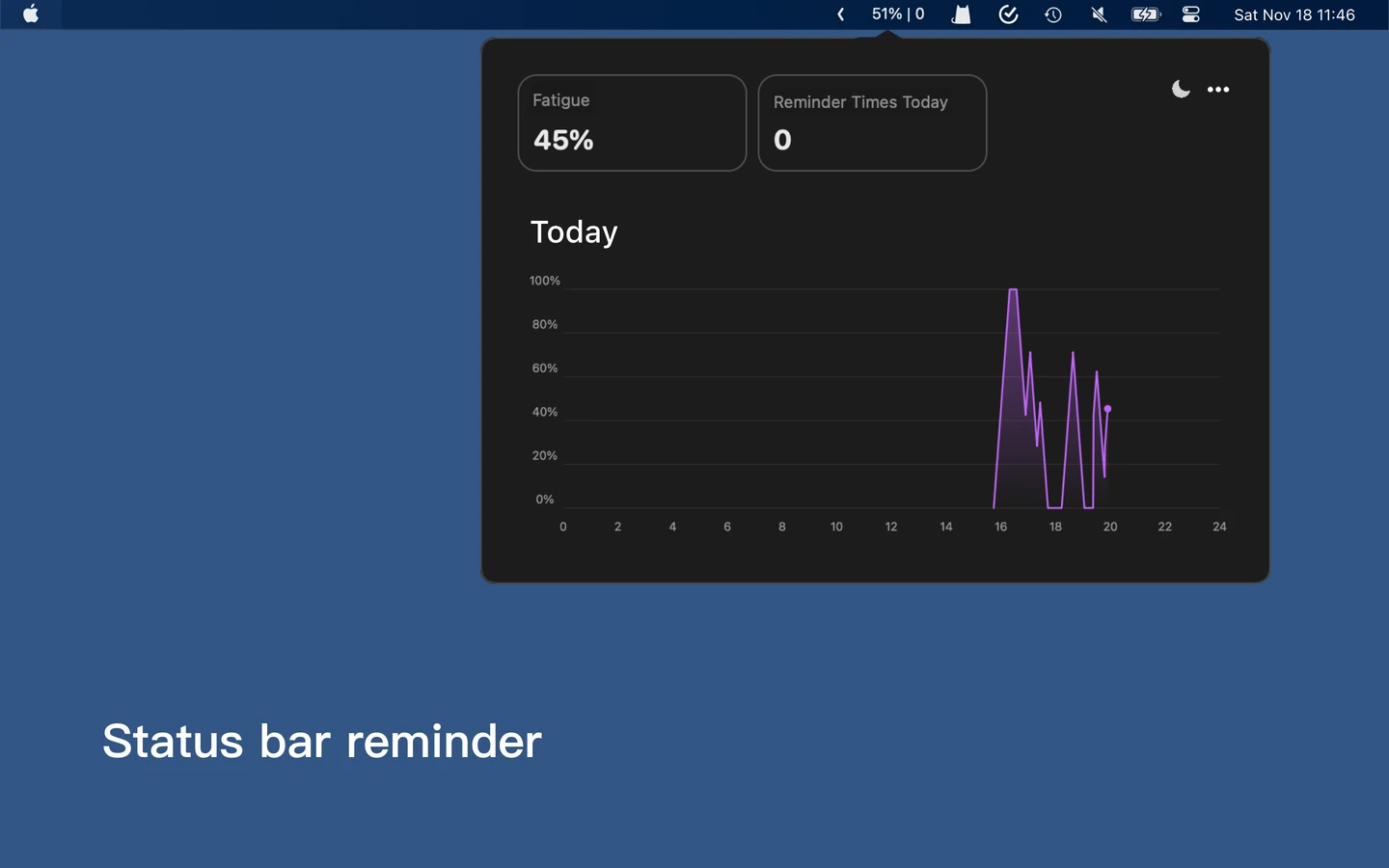
Screen-time reports are easy to ignore when they live inside a window you rarely open. Put the number in the Mac menu bar and it becomes part of the workspace: one glance beside the clock tells you how much computer use Eye Monitor has recorded today.
Eye Monitor can show two values there—today’s screen time and the current fatigue percentage. They answer different questions, and using them together makes the menu bar much more useful.
Screen time shows the day; fatigue shows the current stretch
Today’s screen time accumulates the periods Eye Monitor records as Mac use. It keeps growing across separate sessions, even after you take a break.
The fatigue percentage moves up and down with the current work/rest cycle. It rises while the Mac is in use and can fall while you rest. After a good break, the percentage may return close to zero even though the daily screen-time total is already several hours.
Think of screen time as the day’s odometer and fatigue as the gauge for the current stretch. The first helps you notice a long day; the second helps you see the next break approaching.
Set up the menu-bar display
Open Settings → Status Bar, then choose what you want to see:
- Turn on Show screen time to display today’s recorded total.
- Keep Show screen time minutes enabled for detail, or turn it off for a shorter display.
- Turn on Show fatigue percentage if you want the current work/rest level beside the total.
- Leave at least one of those two values enabled to keep Eye Monitor visible in the menu bar.
These display controls are available without Pro. Start simple: if two numbers feel busy, show only today’s time for a few days. Add the fatigue percentage when you want more context about the current session.
Turn time into a color cue
Enable Change color with screen time and Eye Monitor can change the screen-time text to orange and then red at thresholds you choose. The defaults are six and eight hours, but you can set whole-hour values that better match the way you review your day.
Only the screen-time value changes color. The fatigue percentage keeps its normal appearance, so you can immediately tell whether the cue refers to the whole day or the current work stretch.
The thresholds are personal reminders rather than universal limits. Their job is simply to make a number harder to overlook. If orange means “wrap up soon” and red means “this has become a long Mac day,” choose times that make those signals useful to you.
The Dock icon tells a different story
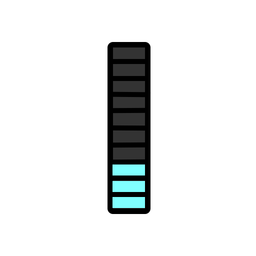
Eye Monitor’s Dock icon also changes as you work, but it follows the fatigue percentage rather than the six-hour and eight-hour menu-bar thresholds. The filled level rises through the current session and falls after rest.
Together, the two locations provide a quick split view:
- The Dock icon shows the current fatigue progress visually.
- The menu bar can show the exact fatigue percentage and today’s accumulated screen time.
- The orange/red text draws attention to the length of the whole day.
You can use any one of them or combine all three. The most effective setup is the smallest amount of information you will actually notice.
When the total looks surprising
Eye Monitor’s counting mode affects what appears as use. Smart mode relies on activity signals, so a quiet reading session can behave differently from continuous typing. Continuous mode counts an awake, unlocked Mac more steadily, which also means time away from an unlocked computer may be included.
If the total feels unexpectedly high or low, compare it with the day you remember and review the smart and continuous timing guide. The goal is not a perfect score—it is a display you understand well enough to act on.
For longer trends, open Today or Analysis and read the statistics and iCloud guide. The menu bar makes the number visible; Eye Monitor’s history helps you see how one day compares with the next.
Further reading
Links updated