 Eye Monitor
The Mac says it is time for a break. You lean back, pick up your phone to check one message, and a few minutes later you are still looking at another screen. The work stopped, but the screen break never really began.
This is less about willpower than about the next action being obvious. The phone is close, familiar and instantly interesting. A better break starts by deciding what happens after the Mac reminder—before it appears.
Give the break a specific next step
“Take a break” leaves a lot of room for the easiest default. A short action is easier to follow: refill your water, put something away, walk to a window or simply leave the desk for the length of the countdown.
Pick one option that does not require opening another app. The action does not need to be ambitious; it only needs to create a real change from the screen you were just using.
Eye Monitor can place that intention directly in the full-screen reminder. With Pro, change the popup text to something concrete such as “Leave both screens for a moment” or “Water, window, then return.” A personal image can make the prompt feel less like a warning and more like a transition. The background and message guide shows how to set both.
Let the Mac reminder follow you to the phone
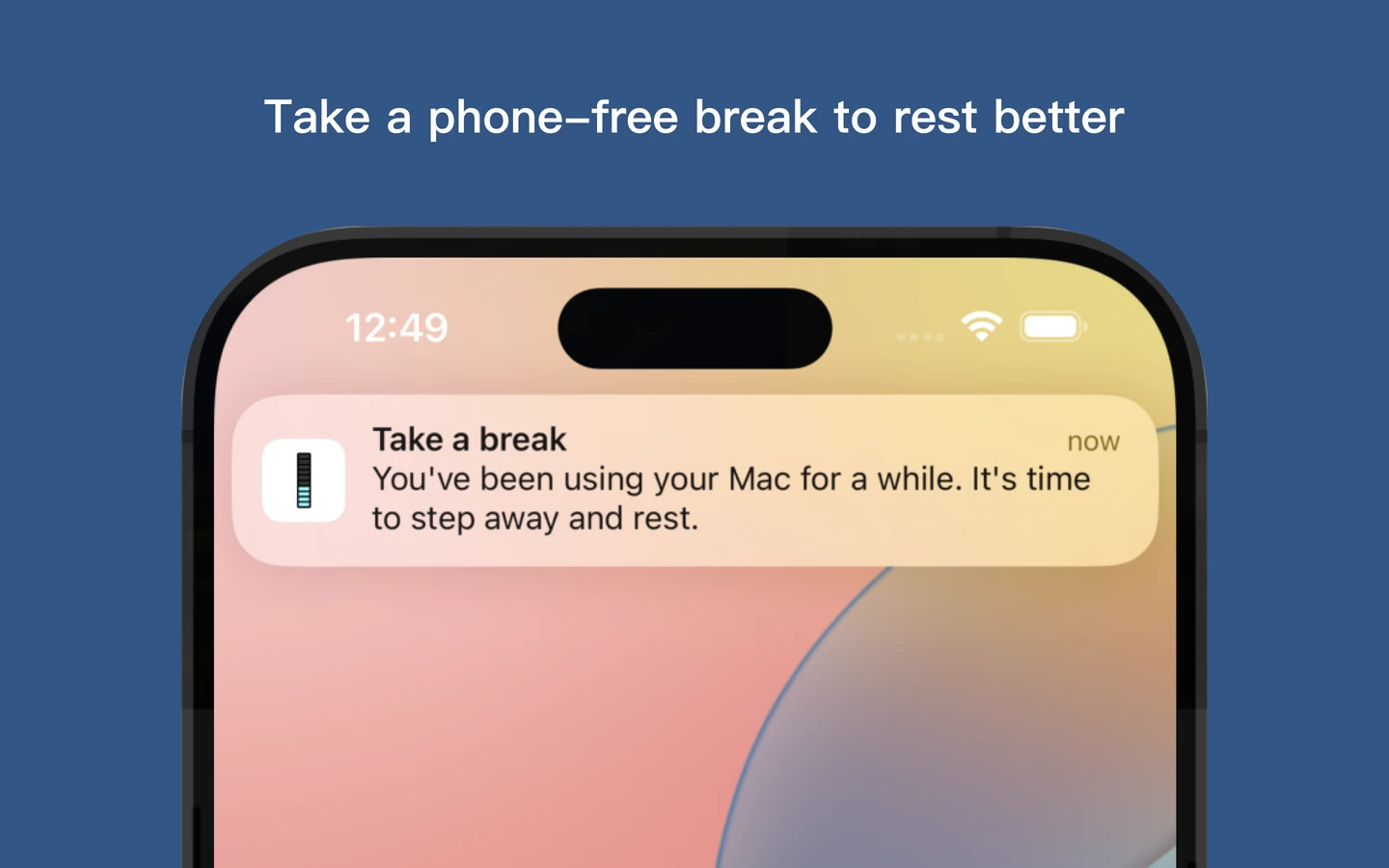
The awkward part of a cross-device break is that the reminder stays on the computer while your attention moves to the phone. Eye Monitor’s iPhone and iPad companion closes that gap by receiving the Mac break reminder.
To connect it:
- Open the iPhone section in Eye Monitor on the Mac and use Sign in with Apple. The Mac companion feature requires Pro.
- Install Eye Monitor on the iPhone or iPad and sign in with the same Apple account inside the app.
- Allow notifications on the mobile device.
- On the Mac, enable Send break reminders to iOS devices.
The next Mac break can now appear on the phone too. If you have already picked it up, the original intention is still visible instead of being left behind on the desk. The iPhone setup guide walks through the complete flow.
Keep the phone’s job small
The iPhone companion is deliberately simple: it carries the Mac reminder to another screen. It is not a second screen-time tracker or an app blocker. That makes it most useful as a prompt to put the phone down again.
Choose a notification presentation you can notice without opening the app. A Lock Screen alert or banner may be enough. If seeing any phone notification pulls you into other apps, place the phone slightly out of reach before the work session and rely on the Mac’s full-screen or Mini reminder instead.
The right setup may be different on different days. The companion can help when you work around the home and move away from the desk; the Mac-only reminder may be better when the phone itself is the distraction.
Make the first seconds easy
Small changes reduce the chance that a break turns into scrolling:
- Put water, headphones or anything you often fetch within an obvious route away from the desk.
- Enable the one-minute advance notice so the break does not feel sudden.
- Keep the phone face down until the Mac countdown begins.
- Use a full-screen or Mini reminder with a clear action in the text.
- When the iPhone notification arrives, treat it as the cue to lock the phone, not open Eye Monitor.
After a few days, pay attention to one simple outcome: did the reminder lead to a different activity, or merely a different screen? Adjust the message, phone placement or reminder style based on what actually happened.
Eye Monitor cannot choose the break for you, but it can keep the intention visible at the moment when attention moves from Mac to iPhone. Set up the iPhone companion, give the next break one clear action and make that action easier than opening another feed.
Further reading
Links updated